A customer visits your website, taps your address, and starts driving. Twenty minutes later, the customer calls from the wrong side of town.
The street address printed on the website was technically correct, but the map link opened an old location. Or the map pin landed behind the building. Or the contact page listed Suite 200 while the footer still said Suite 120. Or the business had moved, and somebody updated Google but forgot the website.
For a local business, an address is not just a line of text. It is part of the customer journey. Your address may appear in several visible and invisible places: Website header or announcement bar, Footer, Contact page, Location page, Embedded map, “Get Directions” button, Appointment confirmation page, LocalBusiness structured data, Google Business Profile, Social media profiles, & Online directories.
One wrong version can create confusion, missed appointments, late arrivals, abandoned visits, and distrust. A simple website address audit can catch the problem before a customer does.
Why a Correct Address Can Still Send Someone to the Wrong Place
Most address problems are not spelling mistakes. They are mismatches between text, links, map pins, and business listings. Imagine a website that displays: 125 Main Street, Suite 300, Bedford, TX 76021
The address looks correct. However, the linked map may still fail if it: Searches only for “125 Main Street” without the city or business name, Uses coordinates from an old office, Opens a similarly named street in another city, Points to the center of a large shopping complex, Drops the visitor at a service entrance, Links to an outdated short URL saved before the business moved, or Opens a generic map instead of directions to the business.
Google’s Maps URL documentation recommends universal, cross-platform URLs for searches and directions. It also explains that a Place ID provides the strongest assurance that a link resolves to the intended establishment. That matters when several businesses share an address, a building has multiple entrances, or the street name is common.
The 10-Minute Website Address Audit
Do not inspect the website only from the office computer. Customers may arrive from different devices and different starting points.
Step 1: Write Down the Official Customer-Facing Location
Start with the version customers should use. Record: Business name, Street number and street name, Suite, unit, floor, or building number, City, state, and ZIP code, Public entrance or parking instructions, Main phone number & Whether customers are actually received at this address.
This becomes your reference while checking every page and platform.
Step 2: Find Every Address on the Website
Check more than the contact page. Look at: Desktop header, Mobile menu, Footer, Contact page, About page, Location or service-area pages, Sidebar widgets, Popups, Appointment or booking pages, PDF forms and downloadable brochures, & Privacy policy and terms pages.
Search the website for the street number, street name, city, and old ZIP code. This often reveals forgotten copies in pages that are not included in the main navigation.
Step 3: Tap Every Address and Directions Button
Each visible address should either be clearly presented as text or intentionally linked to the correct destination.
Test these elements: Street address, Map-pin icon, Embedded map, “Get Directions” button, “Find Us” button, & Parking or entrance link. Confirm that every link opens the intended business—not merely a street, neighborhood, or list of nearby results.
Step 4: Test on Both iPhone and Android
A link that behaves correctly on a desktop browser may behave differently on a phone. Test at least: Desktop browser, iPhone or iPad & Android phone or tablet.
Google Maps URLs are designed to work across platforms. Depending on the device, the link can open the Google Maps app or a browser. The important question is what the customer sees after the link opens.
Step 5: Preview the Actual Route
Do not stop when you see a pin. Tap Directions and preview the last few turns. Ask: Does the route end at the correct building? Does it approach the correct entrance? Is the business name displayed? Is the suite or unit clear? Could a customer confuse the location with another branch? Is there construction, a gated entrance, or a one-way street to explain?
If the building is difficult to enter, add a short arrival note near the address. For example:
Enter from Oak Street and park beside the east lobby. Our office is on the second floor in Suite 210.
That small detail can prevent a frustrated phone call.
Address Text, Map Search, or Directions Link?
These tools serve different purposes.
Plain Address Text
Plain text lets visitors read, copy, or paste the address. It is useful, but it makes the customer do more work.
Map Search Link
A search link opens the business or address in Google Maps. It is helpful when a visitor wants to inspect the area, read place details, or choose a route.
Directions Link
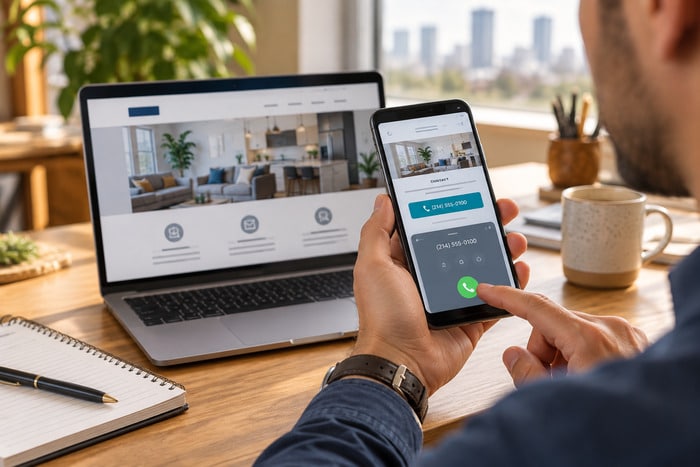
A directions link opens a route with your business as the destination. The visitor can then use the device’s current location as the starting point.
For many storefronts and offices, the best contact-page experience includes: A complete address written as text, A clea, A map or location photo when helpful, Parking and entrance details & A phone number for arrival questions.
Use the Business Name and Place ID When Precision Matters
A generic address search may work today and fail later if map data changes or similar addresses compete for the result.
Google recommends formats that include the place name and address. Its documentation also says a Place ID uniquely identifies a place and is the best guarantee that the link points to the correct establishment.
This is especially useful for:
- Medical offices inside large complexes
- Attorneys and consultants in multitenant buildings
- Restaurants in shopping centers
- Businesses with several locations
- Event venues with multiple entrances
- Companies that recently moved
- Addresses shared by multiple organizations
A web designer or developer can build the correct map URL and test it across devices. The visitor does not need to understand the technical details—the link simply needs to work.
Check the Website Against Your Google Business Profile
The website and Google Business Profile should tell the same real-world story. Compare: Business name, Address, Suite or unit, Phone number, Website URL, Business hours, Map pin, Storefront or service-area status. Google’s Business Profile guidelines say businesses should use a precise, accurate address or service area. They also distinguish storefronts from service-area businesses.
If customers visit your staffed location, confirm that the published address and pin are correct. If you travel to customers and do not receive them at your address, do not display a home address merely because other businesses do it.
Service-Area Businesses Need a Different Approach
Plumbers, mobile detailers, landscapers, contractors, house cleaners, and other service-area businesses may operate from a home or private facility that customers should not visit.
Google advises service-area businesses without a customer-facing storefront to hide the business address from customers. Your website should follow the same practical logic. Instead of publishing a private address, show: The cities, counties, or neighborhoods served, A service-area map that does not identify a private residence, The phone number, A quote or appointment form, Normal service hours, & Emergency-service availability, if applicable.
Do not create the impression that customers can walk into an office when they cannot.
A Useful Service-Area Message
We serve homes and businesses throughout Bedford, Hurst, Euless, Colleyville, and the surrounding DFW area. Call or request service online—we come to you.
That is clearer and safer than displaying an address that is not open to the public.
Review the Address Hidden in Your Website Code
A website can display the correct address while still sending outdated location information to search engines.
LocalBusiness structured data may contain: Business name, Street address, City, State, Postal code, Country, Latitude and longitude, Phone number, Hours & Website URL. Google’s LocalBusiness documentation identifies the physical address as a core property and recommends including as much address detail as possible. Geographic coordinates can also identify the location precisely.
Ask your website provider to check the site’s structured data whenever the business: Moves, Adds or closes a location, Changes suite numbers, Changes its public phone number, Converts from a storefront to a service-area model, & Changes operating hours. Do not assume that editing the visible contact page automatically changes every plugin, theme setting, SEO tool, or code snippet.
Seven Signs Your Website Location Needs Attention
Your website may need a location update if:
- Customers regularly call for directions.
- Visitors arrive at the wrong entrance or building.
- The footer and contact page show different suite numbers.
- The map displays a nearby road instead of the business.
- Mobile visitors must copy and paste the address manually.
- Google shows a different address or pin than the website.
- A private home address is visible for a service-area business.
Even one of these signs is worth investigating.
What to Do When Your Business Moves
Moving the office involves more than changing one page. Create a location-change checklist: Update the website header and footer, Update the contact and location pages, Replace map embeds and directions links, Update LocalBusiness structured data, Update Google Business Profile, Update major social profiles and directories, Replace downloadable PDFs and forms, Update email signatures, Update appointment reminders, Test the old address in site search, & Add a temporary “We Have Moved” notice when appropriate.
Keep the old location in your audit notes until every reference has been checked. A redirect from an old location page may also be necessary if the page has search visibility or inbound links.
A Monthly Location Checklist
Most businesses do not need to audit the address every week. A quick monthly or quarterly check is usually enough.
- Website address matches the official customer-facing address
- Header, footer, contact page, and location page agree
- Suite or unit number is present where needed
- Address links open the correct business
- Directions end at the correct entrance
- Links work on iPhone, Android, and desktop
- Google Business Profile matches the website
- Map pin is accurate
- Structured data contains the current details
- Service-area privacy is handled correctly
- Parking and arrival instructions are still useful
- Old addresses no longer appear in pages or PDFs
Make It Easy for Customers to Arrive
A website should not merely prove that a business has an address. It should help a customer complete the trip.
The strongest location experience combines accurate information with a clear next step:
- Visit us: Show a complete, readable address.
- Get directions: Use a tested cross-platform map link.
- Know before you go: Explain parking, entrances, gates, or suites.
- Call for help: Make the phone number tappable on mobile.
- Protect privacy: Do not publish a private address for a service-area business.
That is a small part of website design, but it has a direct effect on real customers in the real world.
Need Help Checking Your Website Location?
DFW Website Designers helps small businesses build, update, and maintain websites that make the next step clear. We can review your contact information, map links, mobile experience, location pages, structured data, and Google-facing website details.
Call 817-247-6003 or visit DFWWebsiteDesigners.com to request help with your website.