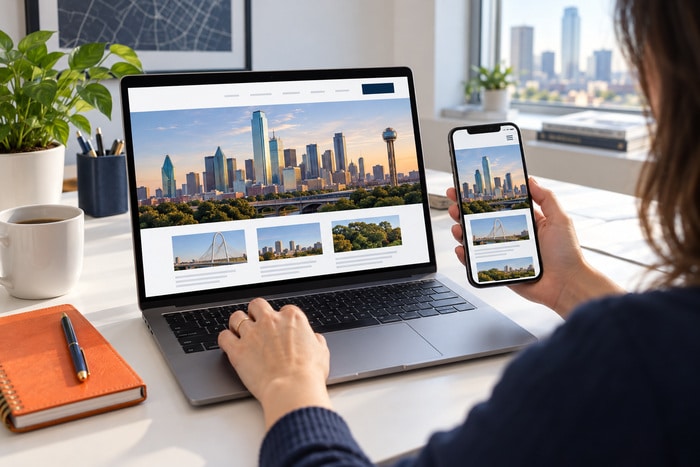
A potential customer opens your website on a phone while standing in a parking lot, sitting in a work truck, or comparing local businesses from the couch. The customer is holding the phone in one hand and wants to find one thing quickly: a service, a location, a phone number, or a way to request a quote. They tap the menu icon. What happens next?
If the menu is crowded, vague, difficult to close, or built with tiny tap areas, a simple visit becomes work. The customer may tap the wrong link, lose their place, or decide that another company is easier to contact. You do not need a laboratory to spot many of these problems. You need your phone, one thumb, and a few minutes.
What Is the One-Thumb Mobile Menu Test?
The test is exactly what it sounds like. Open your website on a phone, hold the phone as you normally would in one hand, and navigate using only that hand’s thumb.
Do not slow down and carefully aim at every link. Use the site the way a busy customer might use it. Open the menu, choose a service, go back, find the contact page, and close the menu.
Run the test on the live website, not only in a desktop preview. A responsive preview is useful during development, but a real phone exposes practical details such as thumb reach, accidental taps, sticky headers, browser bars, and the way the menu feels in motion.
Try These Five Tasks
- Open and close the menu without changing your grip.
- Find one important service in two taps or fewer.
- Return to the home page without using the browser’s back button.
- Find the phone number or contact option.
- Reach the quote or appointment action without guessing which label to choose.
If any task feels awkward to you—and you already know the website—the experience may be even harder for a first-time visitor.
Start With the Menu Button
The menu button is the front door to mobile navigation. It should be easy to identify and easy to tap. Check whether the icon remains visible against the header background. A dark icon can disappear over a dark photograph, while a thin white icon can vanish over a light area. If the button uses only three horizontal lines, make sure its purpose is still clear in context. Adding the word “Menu” can help visitors who do not immediately recognize the icon.
Also confirm that the full padded button is clickable—not only the narrow lines inside the icon. The visible symbol may be small while the actual interactive area around it is comfortably large. The Web Content Accessibility Guidelines (WCAG) 2.2 minimum target-size criterion uses 24 by 24 CSS pixels, subject to specific exceptions. That is a compliance baseline, not necessarily the most comfortable design target. For important mobile controls, generous padding can make the menu easier to use for more people.
Give Every Menu Item Room to Be Tapped
Mobile menu links should not feel like a tightly packed list of fine print. Each row needs enough height and separation that a thumb can select it without hitting the item above or below.
Look for these warning signs:
- Two links activate from nearly the same area.
- A small arrow must be tapped precisely to reveal a submenu.
- The text looks large, but only the letters are clickable.
- Long labels wrap into the next menu row.
- Social icons or utility links crowd the primary navigation.
- The close button sits too near another control.
A simple improvement is to make the entire visual row interactive. Padding creates a larger target without making the text itself oversized.
Test Both Hands When Possible
A control that is easy to reach with the right thumb may be awkward with the left. You do not need to force every action into one small corner, but important paths should not depend on a difficult stretch.
Ask another person to repeat the test. Different hand sizes, devices, and grip habits reveal issues that one tester can miss.
Make the Labels Answer Customer Questions
A menu is not the place to be mysterious. Visitors scan labels; they do not study them. Use terms that match the questions customers arrive with: “Roof Repair” is more specific than “Solutions.” “Service Areas” is clearer than “Where We Work.” “Request a Quote” sets a clearer expectation than “Get Started.” “About Our Team” is more descriptive than “Discover.”
Brand personality can live throughout the website. Navigation labels should first help people predict where a tap will take them. Avoid building a mobile menu that requires several levels of choices before the visitor sees a useful page. If a service matters to the business and to customers, consider giving it a direct route.
Keep the Important Actions Easy to Find
Most small-business websites have a few high-value actions. These may include: Call the business. Request an estimate. Schedule an appointment. View services. Check service areas. Get directions.
Those actions should not all be buried at the bottom of a long menu. Decide which one is the primary action and make it visually distinct without overwhelming the navigation. For example, “Request a Quote” may appear as an orange button while the rest of the menu remains simple text rows.
Do not duplicate so many calls to action that the menu becomes a wall of competing buttons. One clear primary action and a visible phone option are often more useful than five equally loud choices.
Watch What Happens When the Menu Opens
The open state matters as much as the closed state. When the menu expands, verify that: The page behind it does not create distracting movement. The visitor can tell which content belongs to the menu. The close control remains visible. The menu can scroll if its content is taller than the screen. Opening a submenu does not push the close button off-screen. The browser’s own controls do not cover important links.
Test with the phone held vertically and horizontally. Also increase the phone’s text size if possible. A menu that works only at one default setting is more fragile than it appears.
Do Not Forget Keyboard and Screen Reader Behavior
The one-thumb test is a practical starting point, not a complete accessibility review. Mobile visitors may use a connected keyboard, voice controls, switch devices, or a screen reader.
A developer should also confirm that the menu: Uses a real interactive button for opening and closing. Announces whether the menu is expanded or collapsed. Has a logical focus order. Can be operated without a mouse or touchscreen. Keeps a visible focus indicator. Does not trap keyboard focus unintentionally. These checks require more than visual inspection, but they are part of building navigation that works for a wider range of customers.
A 10-Minute Mobile Menu Audit
Use this checklist on at least one current iPhone or Android phone. If possible, repeat it on a smaller screen.
Opening and Closing
- Can you immediately see the menu button?
- Is the entire button easy to tap?
- Does the menu open without delay or layout jumping?
- Is the close control obvious and reachable?
Finding Information
- Can you find a core service quickly?
- Are labels written in customer language?
- Are submenus necessary and easy to expand?
- Can you always tell which page a link will open?
Taking Action
- Is the primary call to action easy to locate?
- Can you tap the phone number to call?
- Can you reach the contact form without excessive scrolling?
- Does the action remain visible when text size increases?
Avoiding Mistakes
- Are rows separated enough to prevent accidental taps?
- Is the full row clickable?
- Do long labels wrap cleanly?
- Does every menu link go to the correct live page?
Record each problem as a specific task. “Improve the menu” is vague. “Increase the clickable area around the close icon” or “rename Solutions to Commercial Cleaning Services” gives a designer or developer something concrete to fix.
A Better Mobile Menu Helps Customers Move Forward
Your mobile navigation does not need animation, clever wording, or a long list of every page on the site. It needs to help a customer answer three questions:
- Where am I?
- Where can I go next?
- How do I contact this business?
The one-thumb test takes only a few minutes, yet it can uncover friction that desktop reviews miss. If the menu is hard to use while you are focused on testing it, imagine using it while distracted, in a hurry, or unfamiliar with the business.
DFW Website Designers helps small businesses create and improve websites that are easier to navigate on phones and desktops. If your mobile menu feels cramped, confusing, or outdated, call 817-247-6003 to discuss a practical website review.