Your office closes for the day. The phones stop ringing. The team goes home. At 9:42 p.m., a potential customer searches for the service you provide. They open your website, read two pages, and decide they may be ready to talk. What happens next?
If the website only says “Call now,” the visitor may reach voicemail and move on. If the contact form gives no response expectation, they may wonder whether anyone will see it. If the site hides business hours, they may call repeatedly or assume the business is unavailable. Your team does not need to work around the clock. Your website does need to help after-hours visitors understand their options.
Your Website Has Different Hours Than Your Office
A physical office has opening and closing times. A website is available whenever customers search—early morning, late at night, during lunch, or on weekends. After-hours visitors may include: People researching after their own workday. Parents waiting until children are asleep. Business owners handling decisions at night. Customers with an urgent but non-emergency need. People comparing several companies before calling. Visitors who prefer online communication. Customers in another time zone. The website should not pretend that a person is immediately available when no one is. It should turn an unavailable moment into a clear, honest next step.
Start With Accurate Business Hours
Display current hours where customers naturally look:
- Contact page
- Website footer
- Header or mobile menu
- Google Business Profile
- Social media profiles
- Appointment page
- Voicemail greeting
Make the details specific. “Open weekdays” is less useful than “Tuesday–Friday, 10 a.m.–5 p.m. Central Time.” If the business is closed on Monday or has seasonal hours, say so. Customers should not have to discover the schedule after placing an unanswered call.
Distinguish Office Hours From Service Availability
Some businesses answer calls during one schedule but provide services during another. Others offer emergency service after normal hours. Clarify: Office or phone hours, Appointment hours, Onsite service hours, Emergency availability, Holiday closures, & Expected response time. Avoid using “24/7” unless the customer can actually receive the service or response implied by that phrase.
Give Visitors More Than One Next Step
“Call us” may be the preferred action during business hours. After hours, offer alternatives. A useful after-hours page or contact section may include: Leave a message, Request a callback, Schedule a consultation, Submit project details, Ask a chatbot a basic question, Browse frequently asked questions, View pricing or service information, Start an application or registration & Send an email. The right combination depends on the business. A law firm, contractor, medical practice, school program, and website agency do not need identical tools.
Set an Honest Response Expectation
After-hours visitors want to know when someone will respond. Instead of: We’ll be in touch soon. Use: Messages received after 5 p.m. are reviewed the next business day. Or: Submit your project details now, and our team will call or email within one business day. If weekend messages are not reviewed until Tuesday, say so. A slower but accurate promise builds more confidence than a vague or unrealistic one.
Match the Promise to Your Workflow
Do not publish a one-hour response promise if the inbox is only checked twice per day. Before adding response language, confirm: Who receives the notification. Who owns the follow-up. What happens during vacations or holidays. Whether messages are routed by service type. Whether urgent requests require a different path. How the team records and tracks the lead. The website promise and the internal process must agree.
Improve the Voicemail Experience
Many after-hours website visitors will still call. The voicemail greeting becomes part of the website customer experience. A useful greeting should include: Business name, Confirmation that the office is closed, Regular hours, Expected callback timing, Website address or online option, & Emergency instructions, when appropriate. Keep it short. Customers should not have to listen to a long menu before leaving a message.
Test the phone number from the website on both desktop and mobile. Confirm that click-to-call links use the correct number and that voicemail is not full.
Use a Callback Form That Collects the Right Details
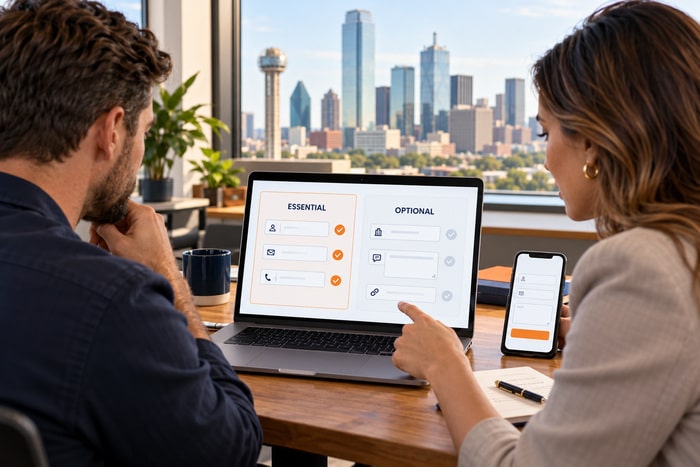
A callback form should help the team respond productively without asking the visitor to complete a full intake process. Consider requesting: Name, Phone or email, Preferred response method, Best time to contact, Service needed, Short description, & Location or ZIP code, when relevant. Make sensitive or detailed questions optional unless they are truly necessary. Tell the visitor not to submit confidential, medical, financial, or legal information through a general form.
Let Customers Schedule Without Creating Confusion
Online scheduling can turn an after-hours visit into a confirmed next step. It works best when the page explains what is being scheduled. Clarify: Phone, video, or in-person meeting, Length of appointment, Free or paid consultation, Who will attend, What the customer should prepare, Cancellation or rescheduling rules, & Whether the appointment confirms service or only begins evaluation. Do not show appointment times that the team cannot honor. Check time zones, staff calendars, buffers, and holidays.
Use Scheduling Selectively
Not every inquiry should go directly to a calendar. A brief form may be better when eligibility, service area, project size, or urgency must be reviewed first. In that case, explain: Submit your request and we will confirm the appropriate next step during business hours.
Build an After-Hours FAQ
A focused FAQ can answer the questions that stop visitors from taking action. Consider:
Do you serve my area? List the primary cities, counties, ZIP codes, or travel limits.
How much does the service cost? Provide a fixed price, starting price, typical range, package comparison, or the factors that affect the estimate.
How soon can you begin? Explain normal scheduling and what may change availability.
What information should I send? List the measurements, photos, documents, or project details that help.
Is this an emergency? Explain what the business considers urgent and where immediate help is available.
When will you respond? State the actual business-day expectation.
Keep the answers concise and link to detailed service pages where needed.
Use Chat Without Pretending It Is Human
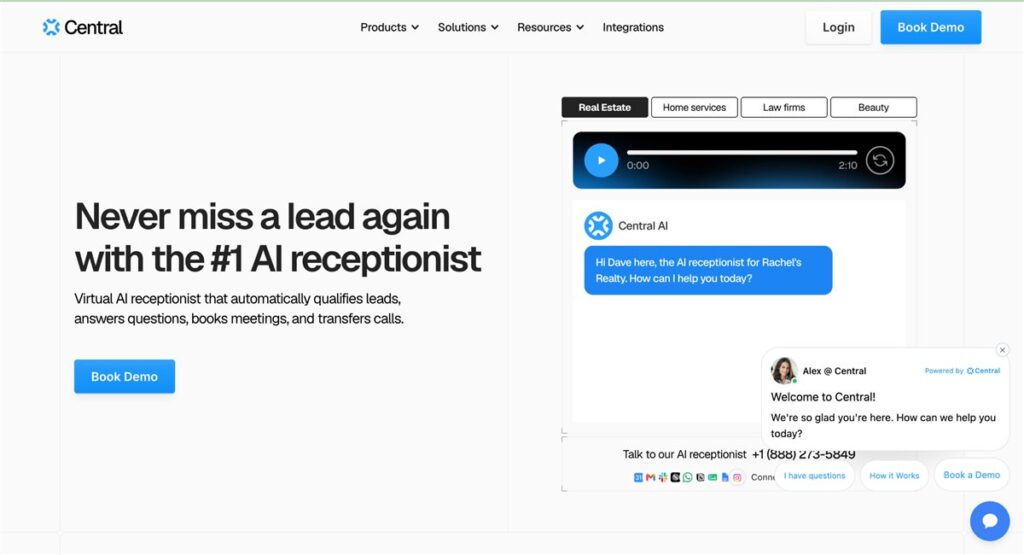
A chatbot can help visitors find services, hours, service areas, scheduling links, and common answers. An AI receptionist may capture information or guide callers after hours. Be transparent about what the tool is. The chat experience should: Identify itself accurately. Explain whether a human is currently available. Avoid claiming a booking is confirmed when it is not. Provide an easy way to leave contact information. Escalate appropriately. Avoid collecting unnecessary sensitive data. Give a clear response expectation. Offer a human contact path.
Review conversations regularly. A chatbot should not continue giving outdated information after pricing, hours, policies, or services change.
Separate Emergencies From Normal Requests
Some visitors believe their situation cannot wait. The website should help them identify the correct channel without overstating what the business can provide. If emergency service is available, explain: What qualifies, Which number to call, Service area, Additional fees, & Typical response window. If emergency service is not available, state that clearly. For medical, safety, or legal emergencies, provide the appropriate general direction without implying that a website form is monitored continuously. Do not place critical emergency instructions only inside a popup or chatbot. Make them easy to find on the page.
Make the Mobile Experience the Priority
After-hours visitors are often using a phone. Test the full path on a real mobile device. Check that: Hours are easy to find. The phone number is tappable. Forms fit the screen. Scheduling works with the mobile calendar. Chat does not cover important buttons. The keyboard does not hide the submit button. Confirmation messages are readable. Maps and addresses open correctly. Pages load quickly on a cellular connection. Complete every action rather than stopping when the form looks correct.
Confirm That Notifications Actually Arrive
A polished form is useless if its email is filtered, sent to a former employee, or ignored in a crowded inbox. Test: Contact form notifications, Callback requests, Calendar confirmations, Chat transcripts, Text alerts, Voicemail notifications & Automatic customer confirmations. Use a real external email address and phone number. Confirm both what the business receives and what the customer sees. Repeat this test after plugin updates, email changes, staff changes, or website migrations.
Create Different Messages for Open and Closed Hours
If your website tools support schedules, show context-aware guidance. During business hours: Call now or send a message. Our team is available until 5 p.m. After hours: We are currently closed. Leave your details or schedule a consultation, and we will respond the next business day. The goal is not to create urgency. It is to make the available options accurate.
Run a 15-Minute After-Hours Website Test
Visit the website after the office closes and act like a new customer.
- Find the current business hours.
- Tap the phone number.
- Listen to the voicemail greeting.
- Submit the main contact form.
- Request a callback.
- Try the scheduling tool.
- Open the chat.
- Search for an answer to a common pricing question.
- Check emergency language.
- Confirm the response expectation.
- Review the confirmation email.
Ask someone outside the business to repeat the test. Their confusion will reveal assumptions your team no longer notices.
Build a Simple After-Hours Lead Workflow
Document what happens from the moment an after-hours inquiry arrives.
- The visitor chooses a form, chat, call, or scheduling option.
- The system confirms receipt.
- The inquiry reaches the correct person.
- The lead is recorded.
- The team responds within the promised window.
- The outcome is tracked.
Assign a backup owner. A workflow that depends on one person can fail during illness, vacation, or staff turnover.
Your Website Can Stay Helpful Without Keeping You at Work
An effective after-hours experience does not require your team to answer every message immediately. It requires clarity. Show accurate hours. Offer a useful alternative to calling. Explain when the customer will hear back. Provide answers to common questions. Test the phone, forms, chat, scheduling, and notifications on a mobile device.
If your website becomes a digital locked door when the office closes, DFW Website Designers can help improve the contact path, callback forms, scheduling, chat, AI receptionist tools, and response expectations. Call 817-247-6003 during business hours or submit a project request online.